

Please follow the guide below on how to make Data Ally an operator in your WatchGuard Cloud. This will allow us to assist you better.
STEP A: Complete the form to initiate your request with Data Ally (click here)
STEP B: Submit the form
STEP C: Wait for Data Ally Support Team to reply to your request.
When you receive the reply you will be provided with a username and an email which you will use in the steps below.
DO NOT PROCEED TO THE NEXT STEPS UNTIL YOU GET A REPLY FROM OUR SUPPORT TEAM
STEP D: Login to your WatchGuard Cloud (click here)
STEP E: Login with your credentials (an admin/owner account is required)
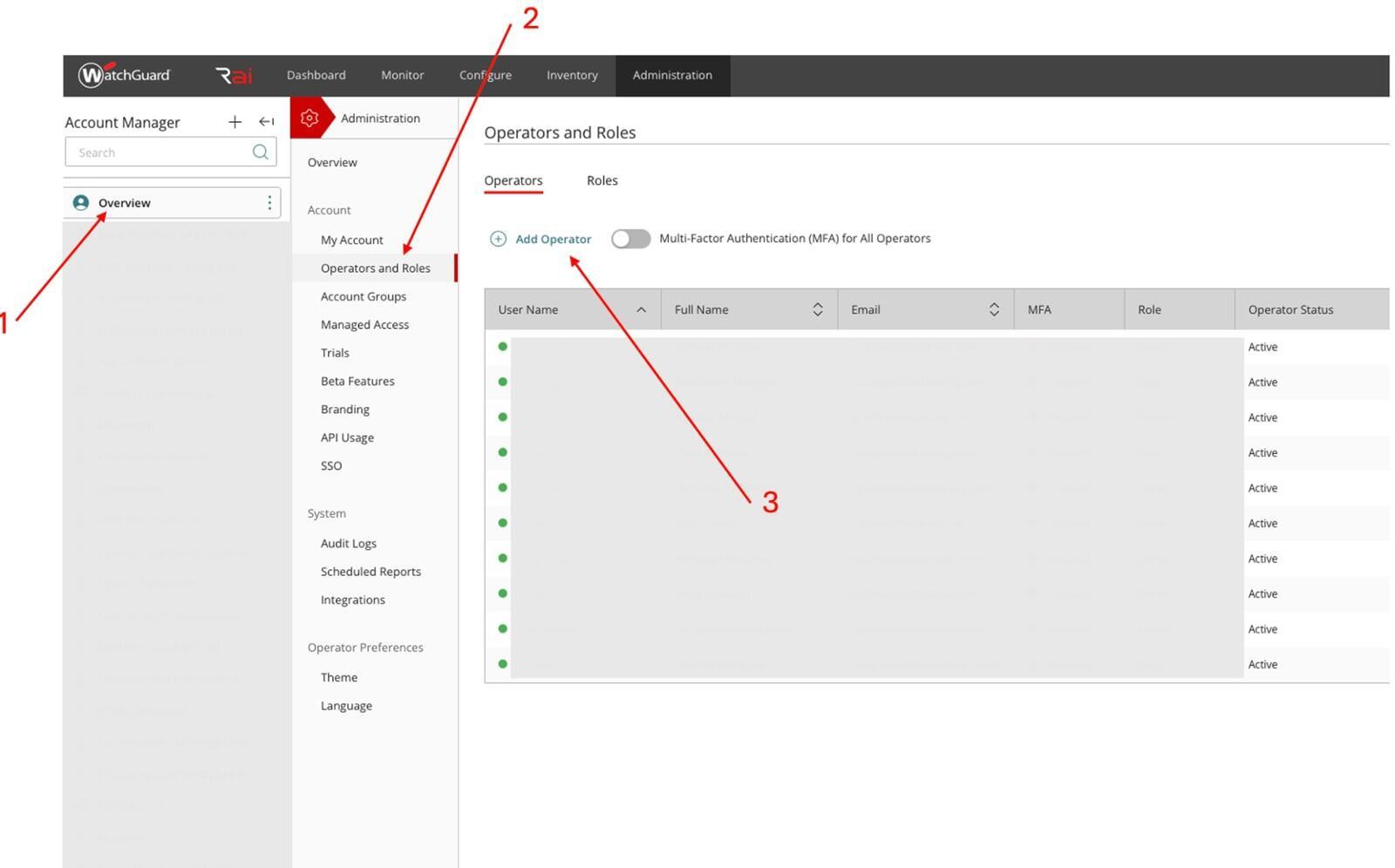
STEP F: Click Overview (see photo - 1)
STEP G: Click Operators and Roles (see photo - 2)
STEP H: Click Add Operator (see photo - 3)
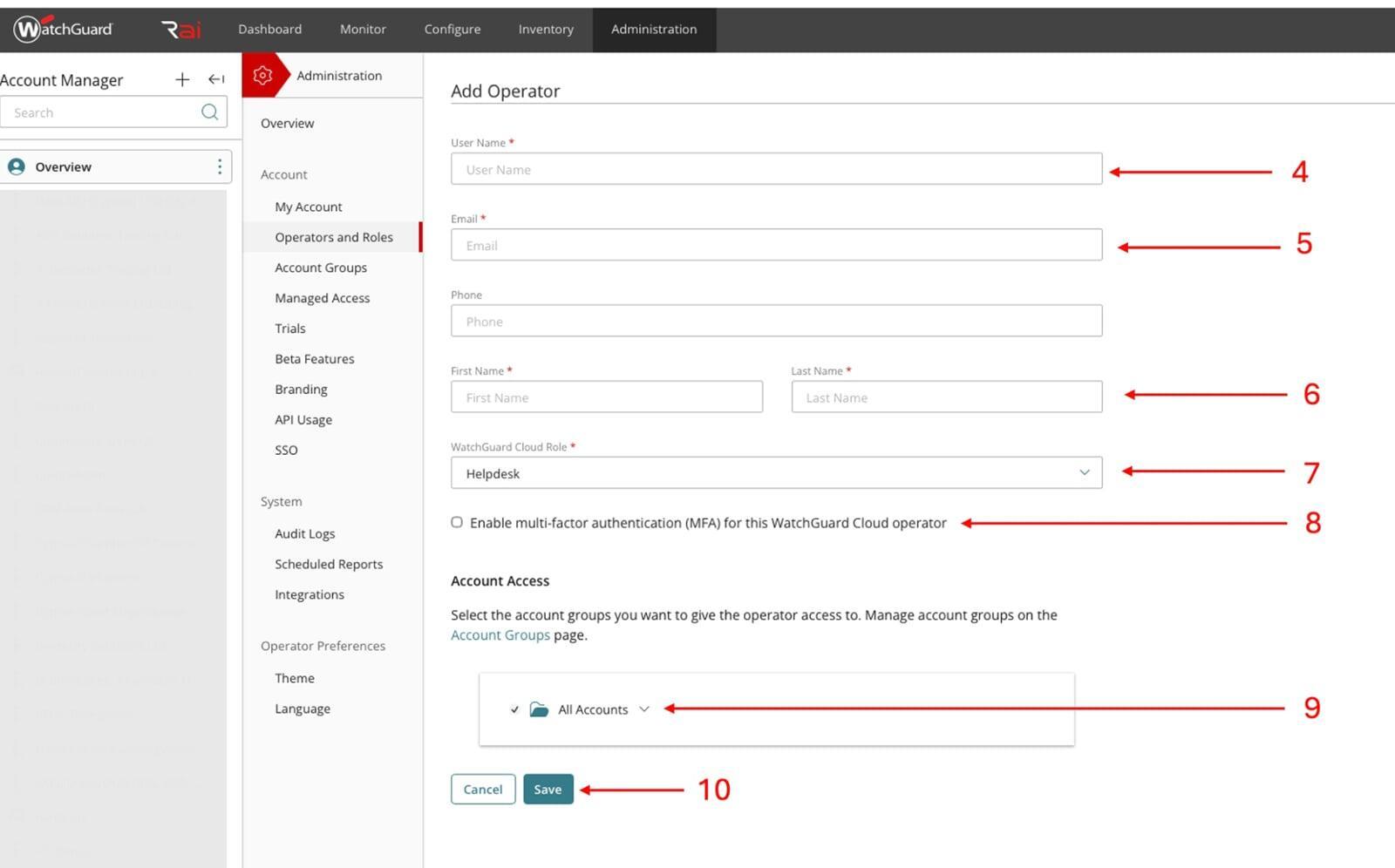
STEP H: Add the username you received from our support team (see photo -4)
STEP I: Add the Email you received from our support team (see photo -5)
STEP J: Add First Name: Data Ally Last Name: Support Team (see photo -6)
STEP K: Select the Role you want to provide us. Helpdesk we can assist only with settings / Owner we can perform any changes - full access ( see photo -7)
STEP L: DO NOT Enable multi factor authentication (see photo -8)
STEP M: Make sure All Accounts is ticked ( see photo -9)
Finally STEP: click SAVE (see photo -10)